Restaurant menu – Frequently Asked Questions (FAQ)
1. What is Restaurant menu?
The Restaurant Food Menu and Laundry Menu designed for hotel room service or guest in-room. You can customize these based on your hotel’s offerings and pricing. Items that guests can order to be delivered directly to their hotel room. It's typically a simplified version of the hotel's full restaurant or café menu and laundry services.
1. Where do I manage the room-service menu?
- Navigate to RunHotel admin dashboard, "Setting" > "Restaurant menu".
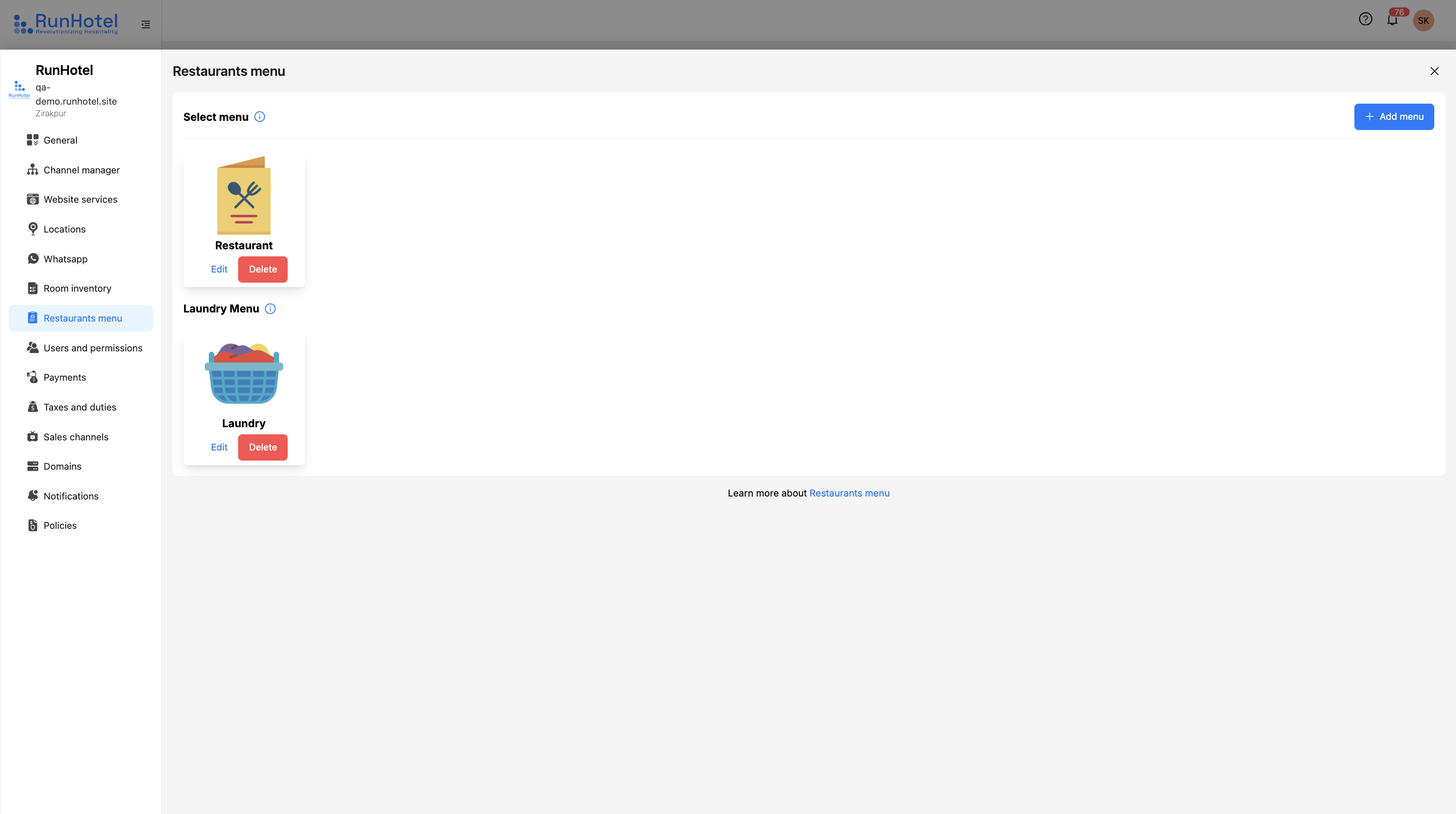 Here you can create categories (Laundry Menu, and Restaurant Menu)
2. How do I create menu?
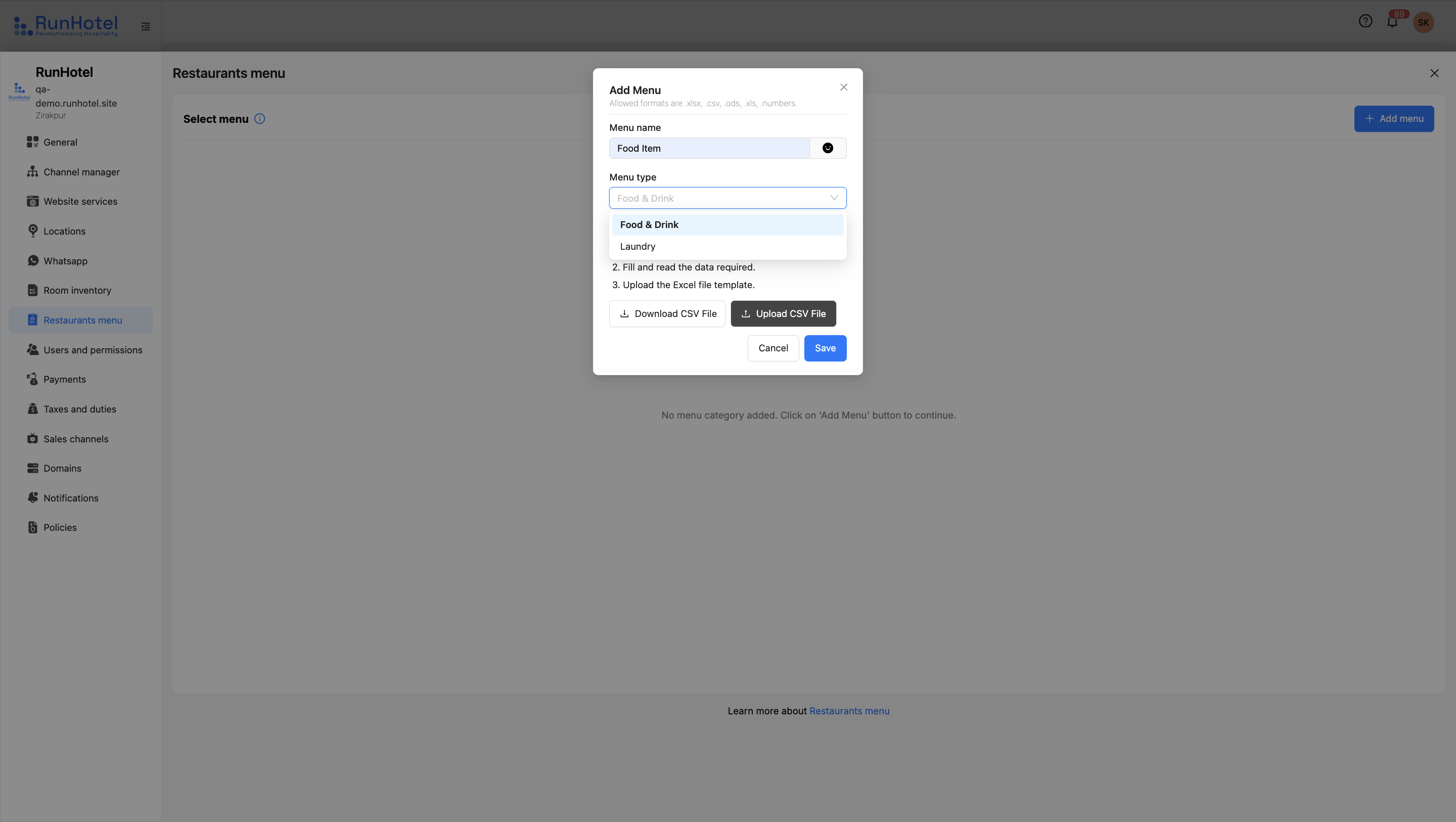
Navigate to Restaurant menu, Click on the "Add menu button"
Option 1: Manual Entry.
In the form that appears:
- Enter the Menu Name eg(Food Item)
- Select the icon beside the Menu Name field to choose an image or symbol for the menu
- Select the Menu Type (choose either Food and Drinks or Laundry).
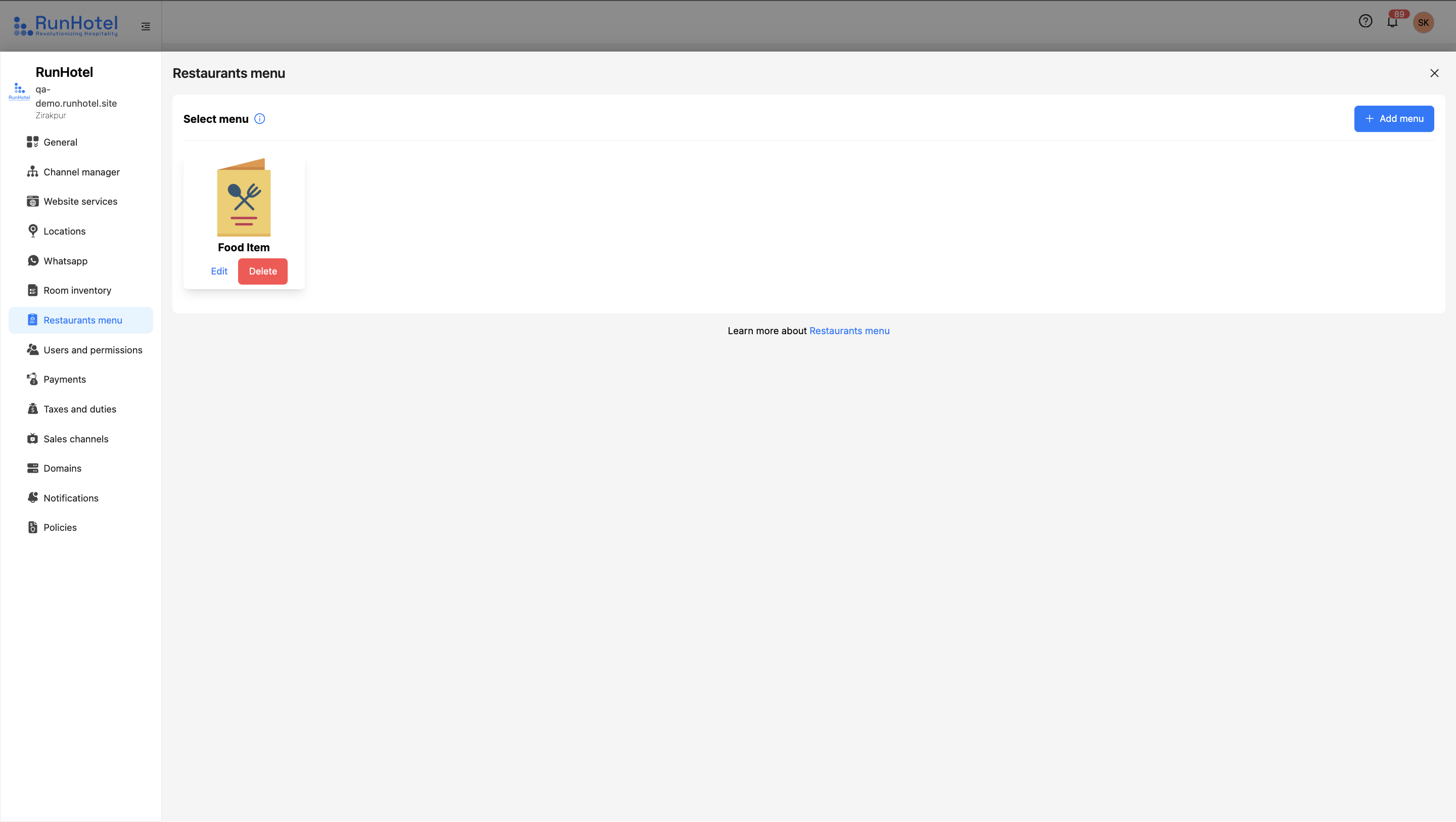
2. Save it and see the new menu is created eg (Food Item)
Option 2: Upload via CSV File.
1. Download the Excel file template from "Download CSV file, provided in the Add Menu modal.
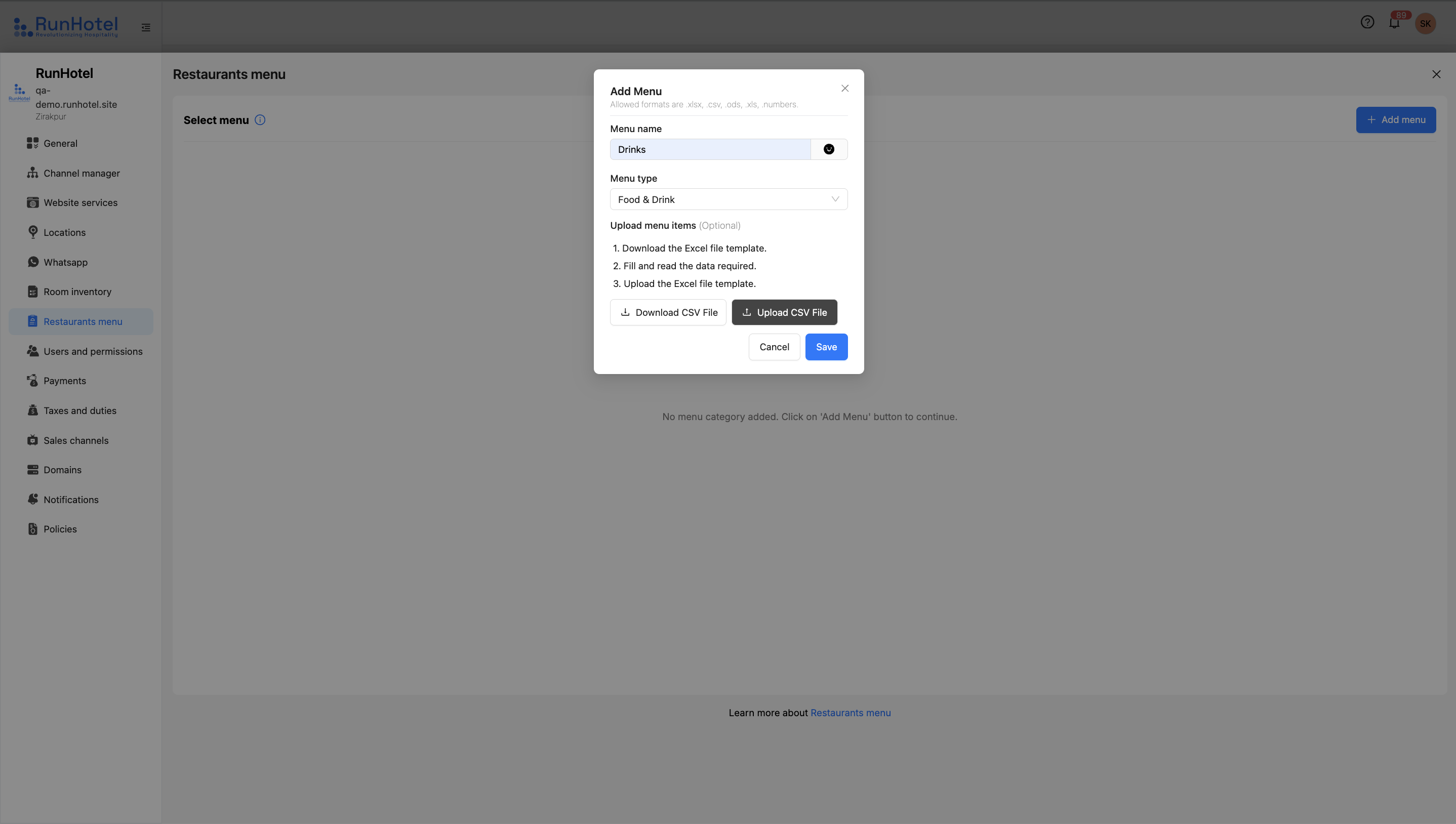
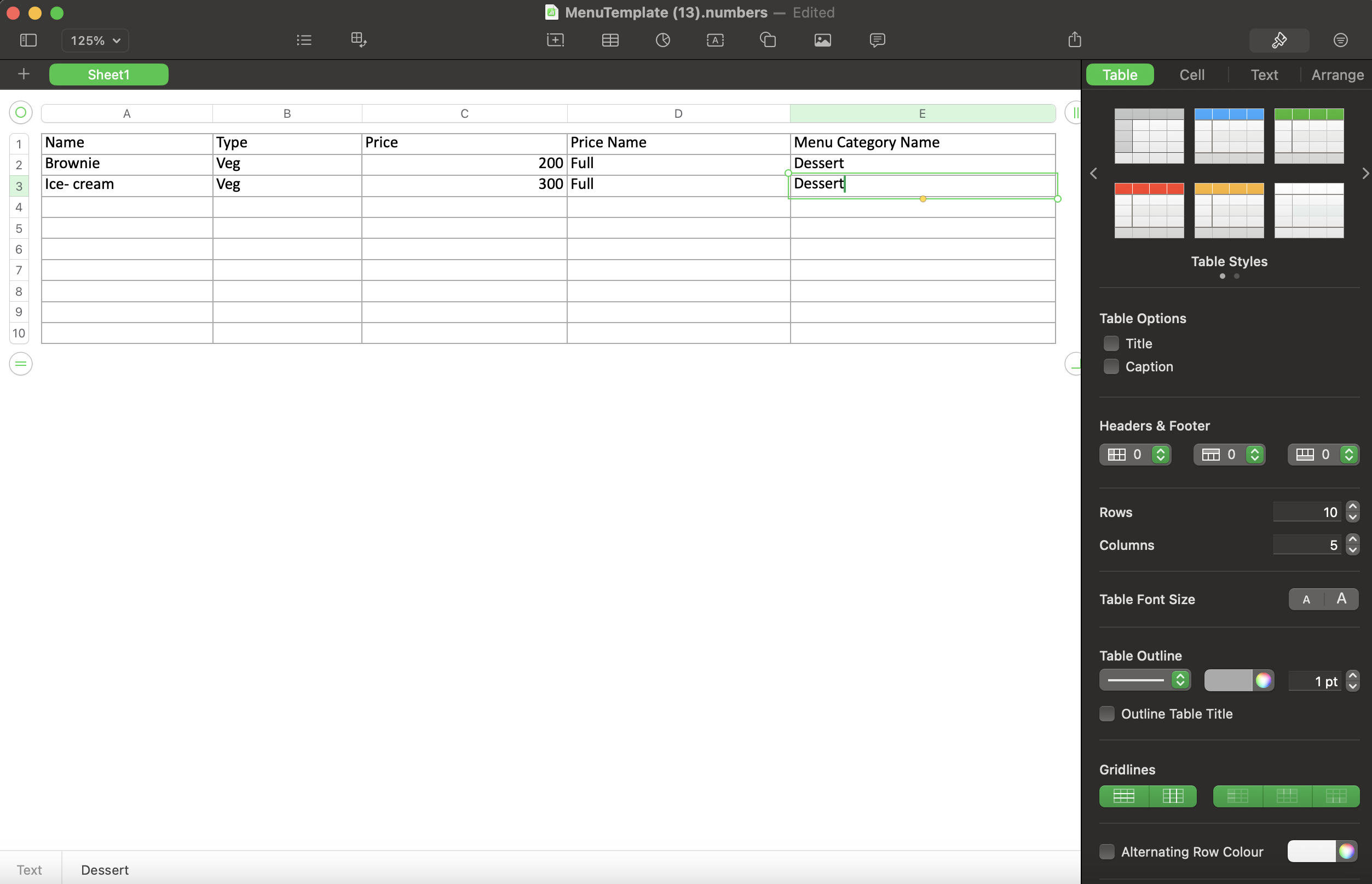
2. Fill in the required data in the CSV file.
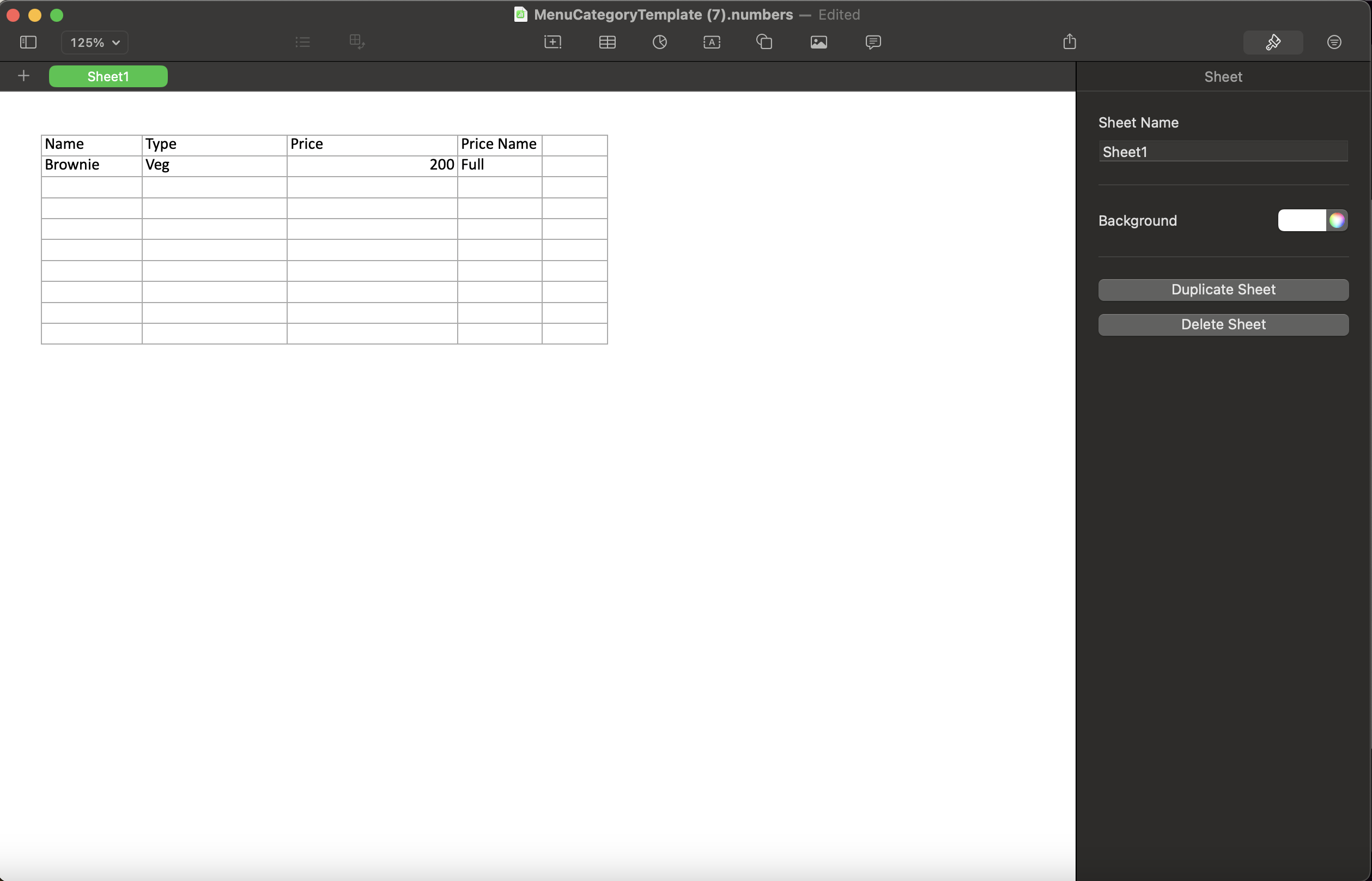
eg Name : Brownie , Type : Veg/Non-veg, Price : Rs 200 , Price Name : Half/Full, Menu Category Name : Dessert
3. Once completed, return to the Restaurant Menu section and upload the filled template.
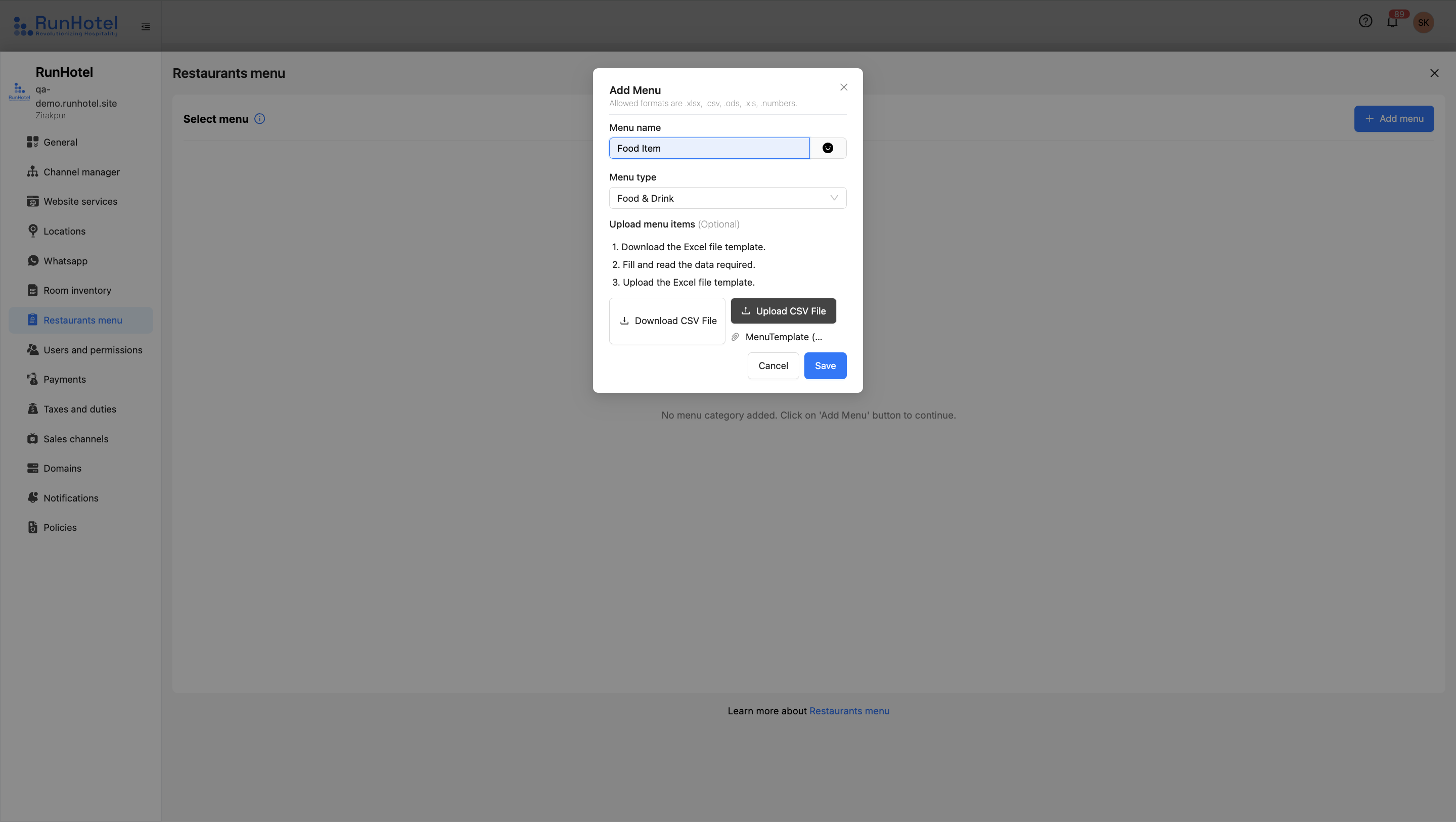
-Once uploaded, Food item menu will be created, click on this menu and it will show the menu card
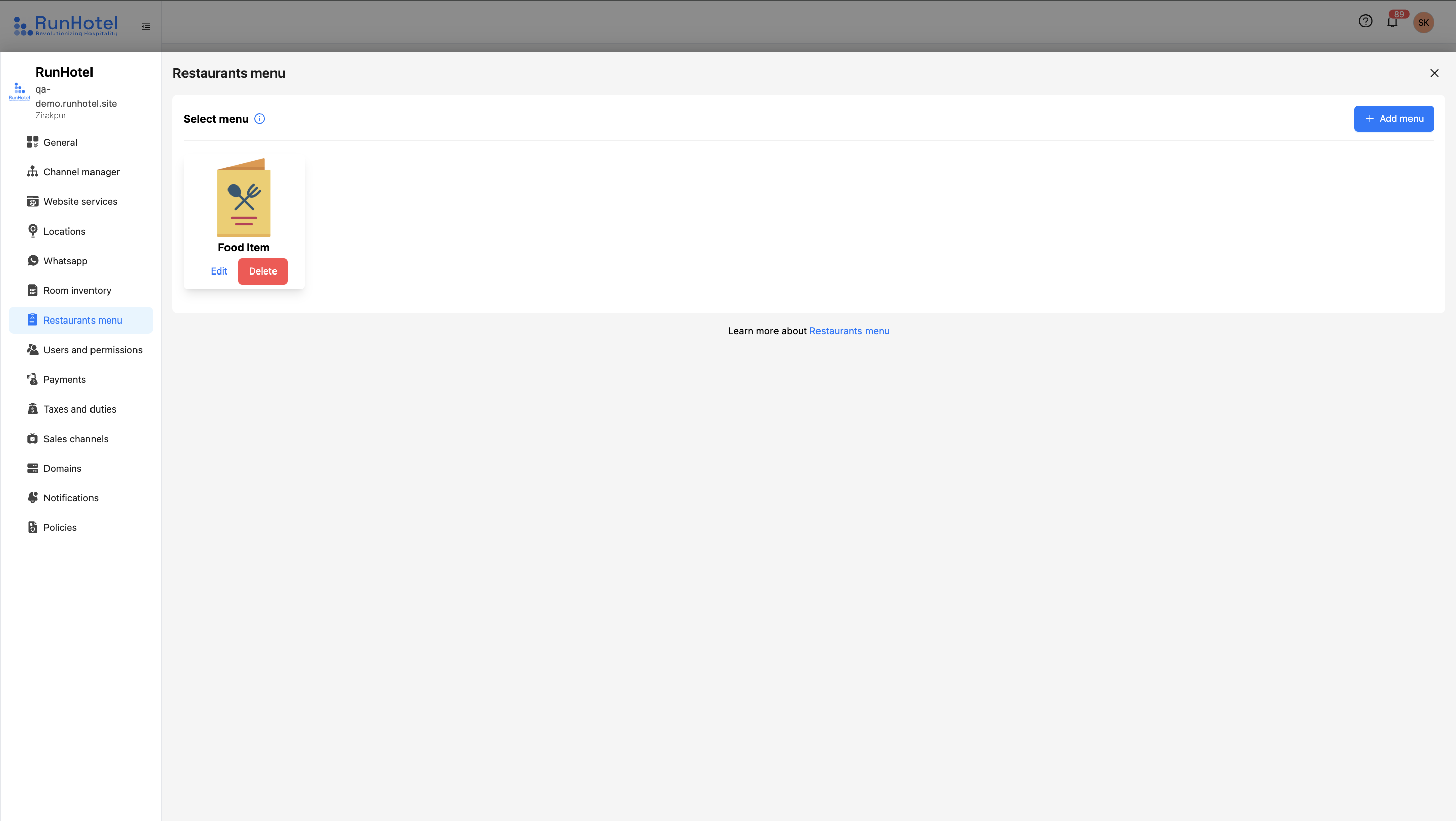
- Menu show the added details in the CSV excel file submitted by the owner.
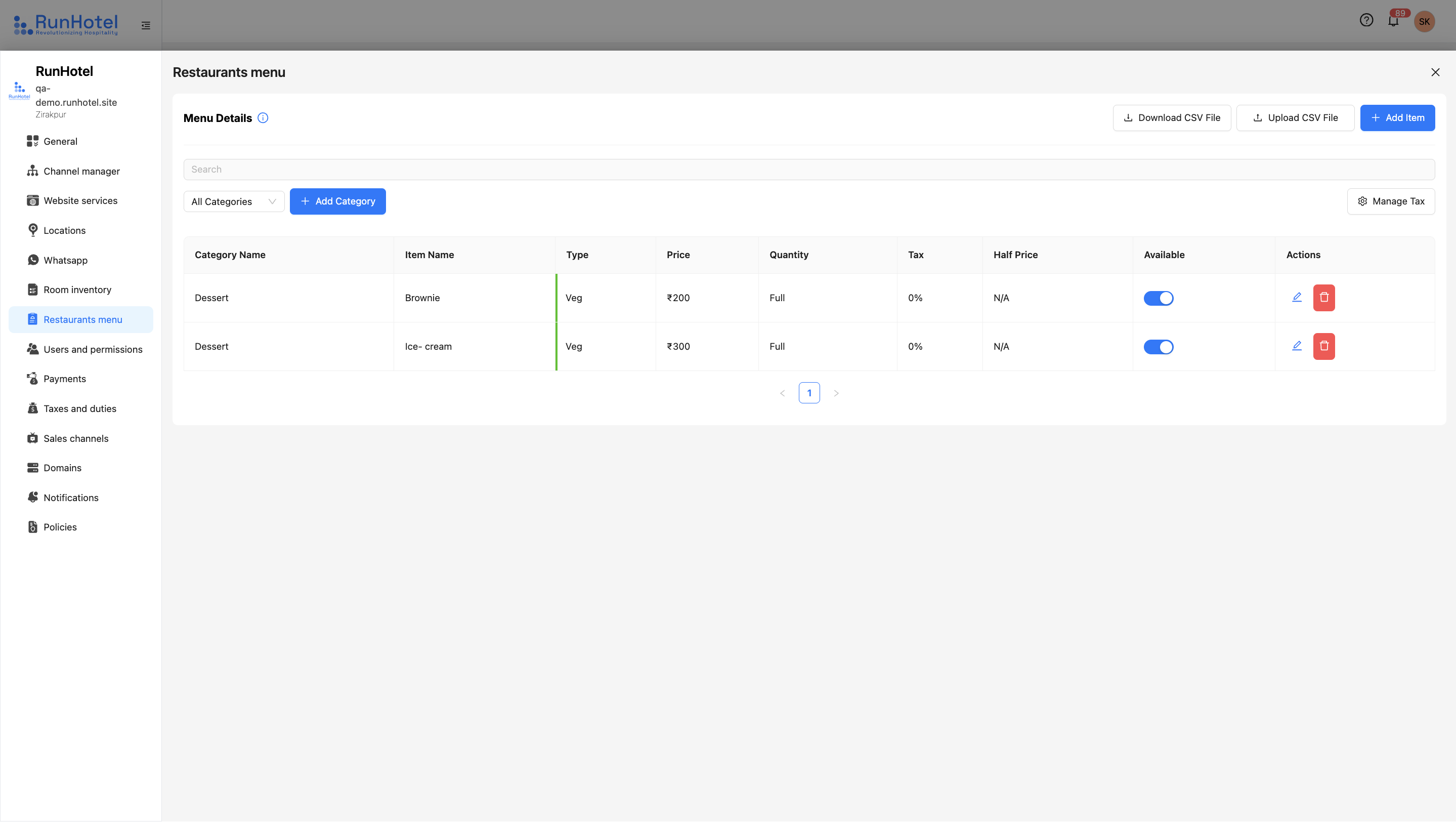
3. Can I Organize the Menu into Categories?
Yes! You can create unlimited categories—such as Food, Laundry, or Beverages—and assign items to them using the Menu Categories Management feature.
There are two ways to organize categories:
Option 1: Manual Entry
Go to the Menu Details section and click on "Add Category" button.
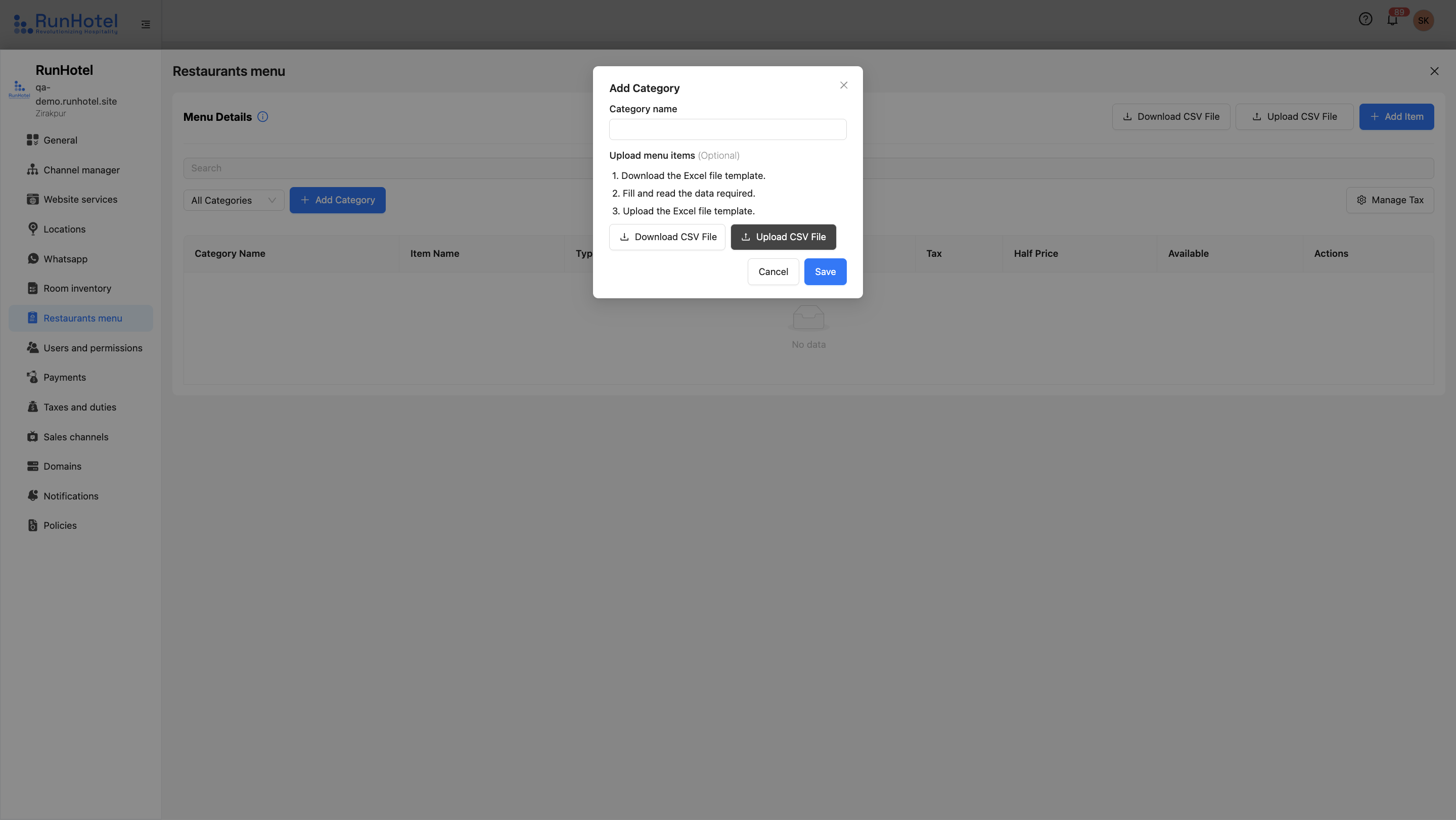
2. Enter the
Category Name eg Main course, Breads, Dessert etc and save
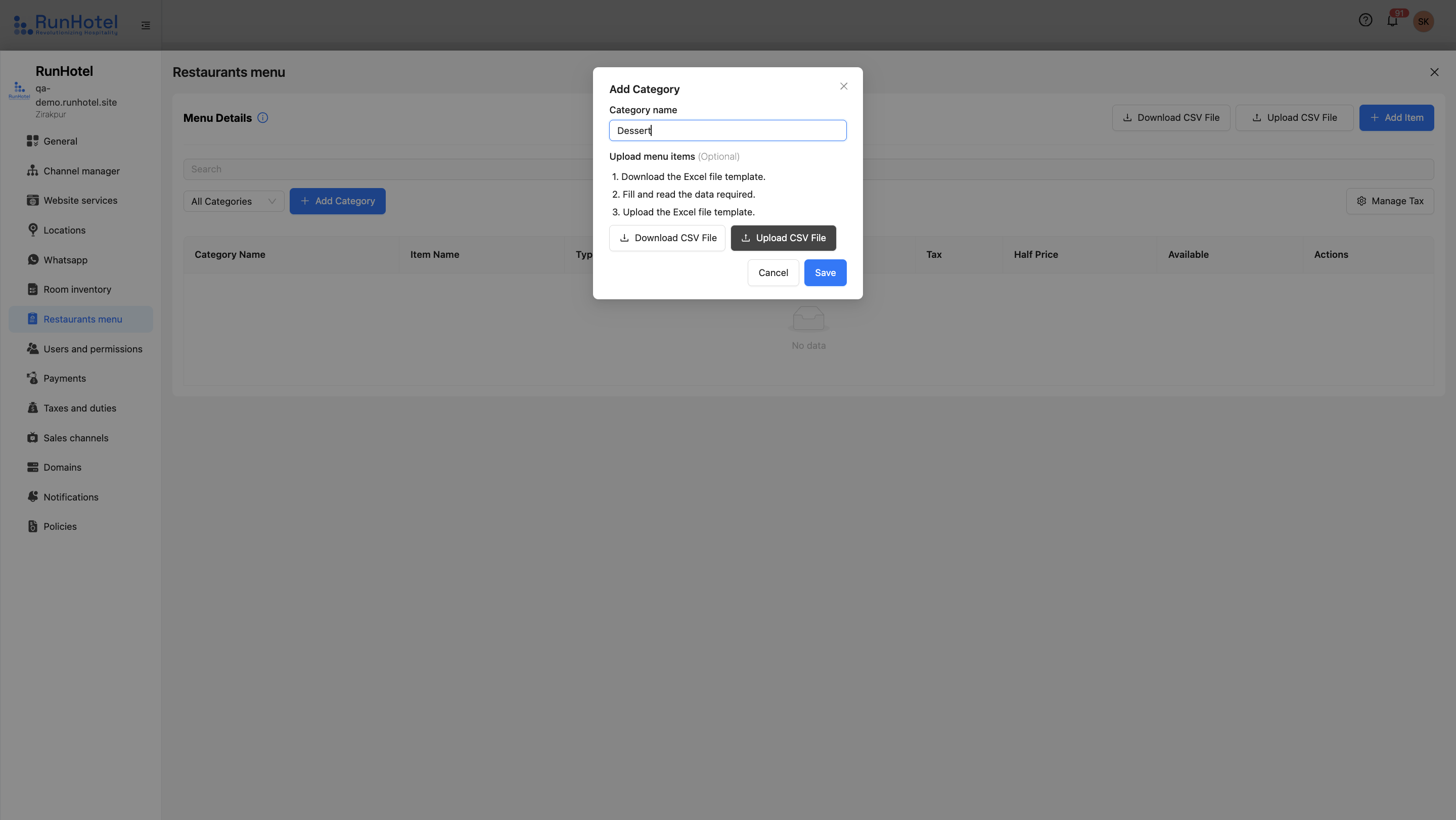
3. Add item to the added categories, Click on the "+Add item" button,
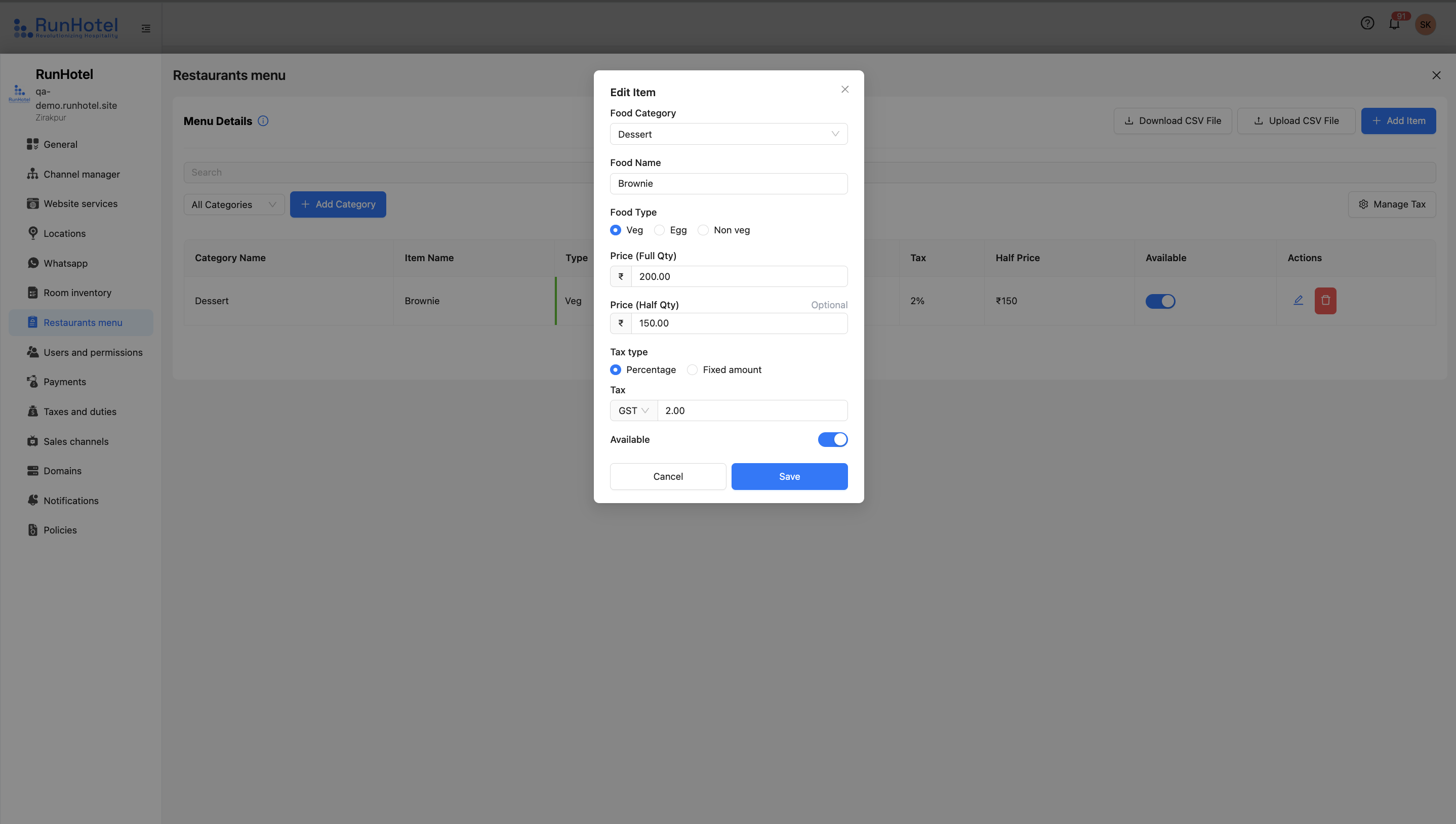
- Select the food category type from add item modal eg Dessert, Main course, dessert etc.
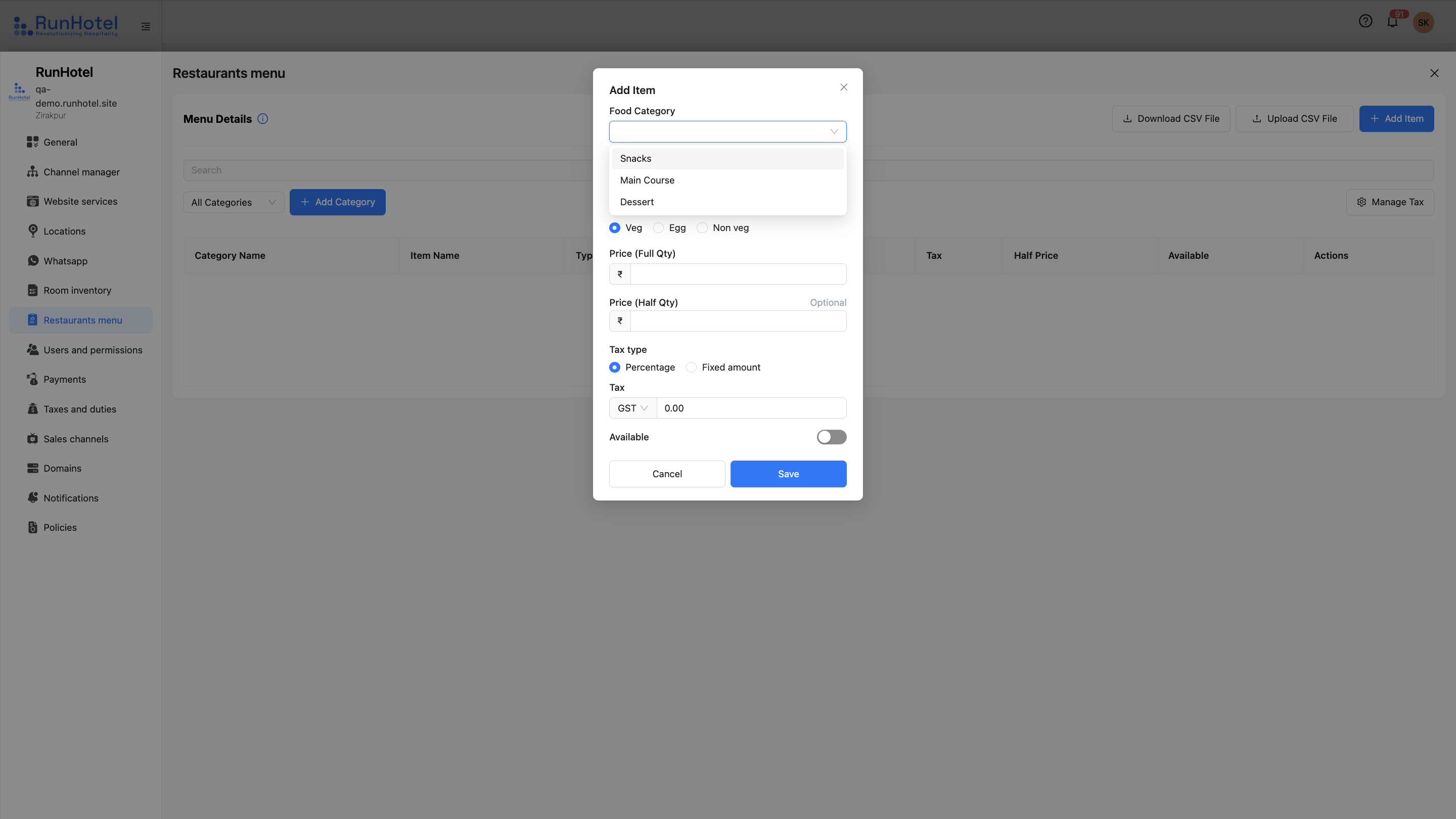
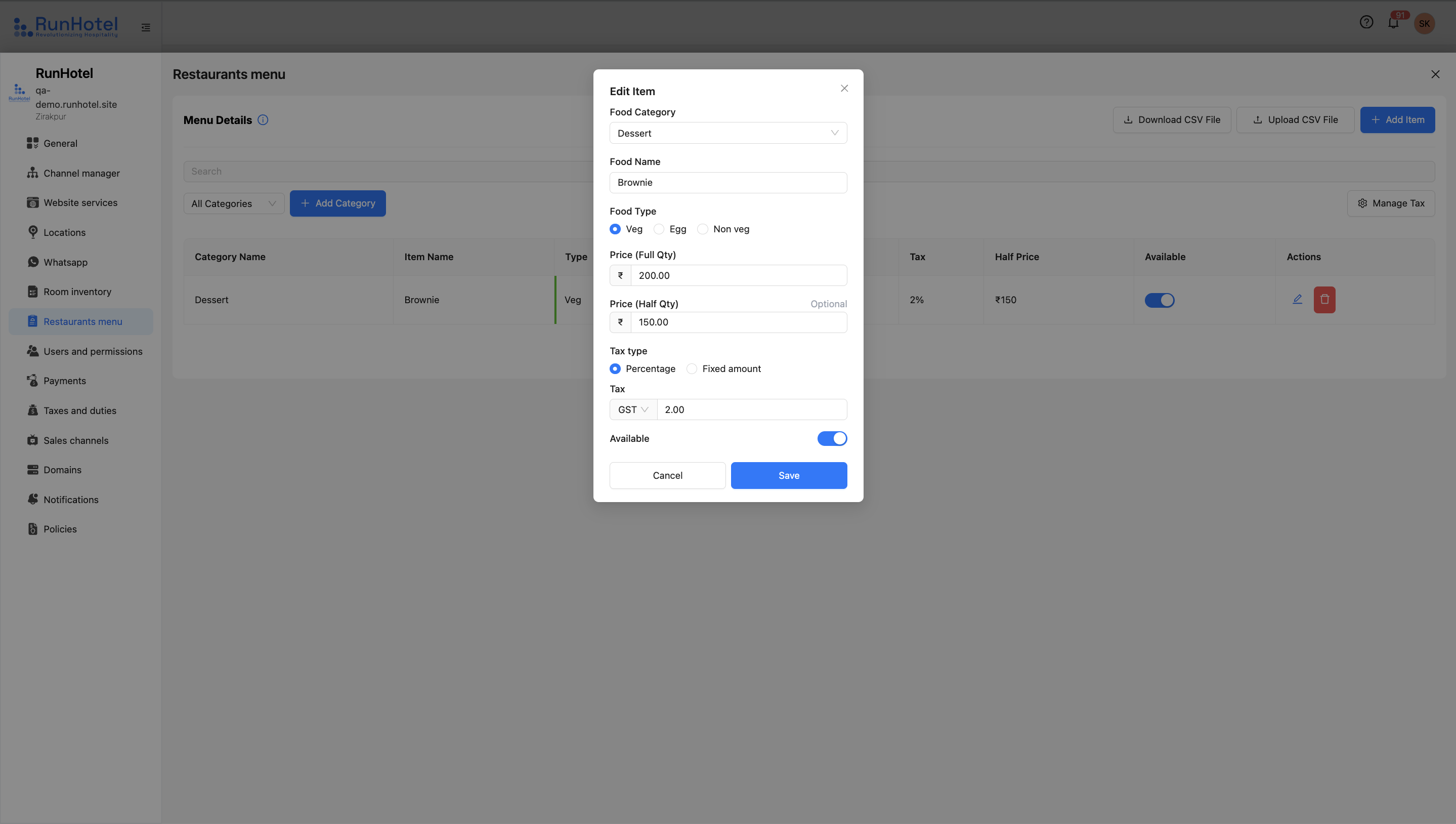
- To add a food item to the menu, enter the
food name, select the
food type (e.g., vegetarian or non-vegetarian), and provide the
price for full and half quantities. Choose the applicable
tax type and set the item’s
availability status. Accurate entry ensures proper billing and a clear menu for guests.
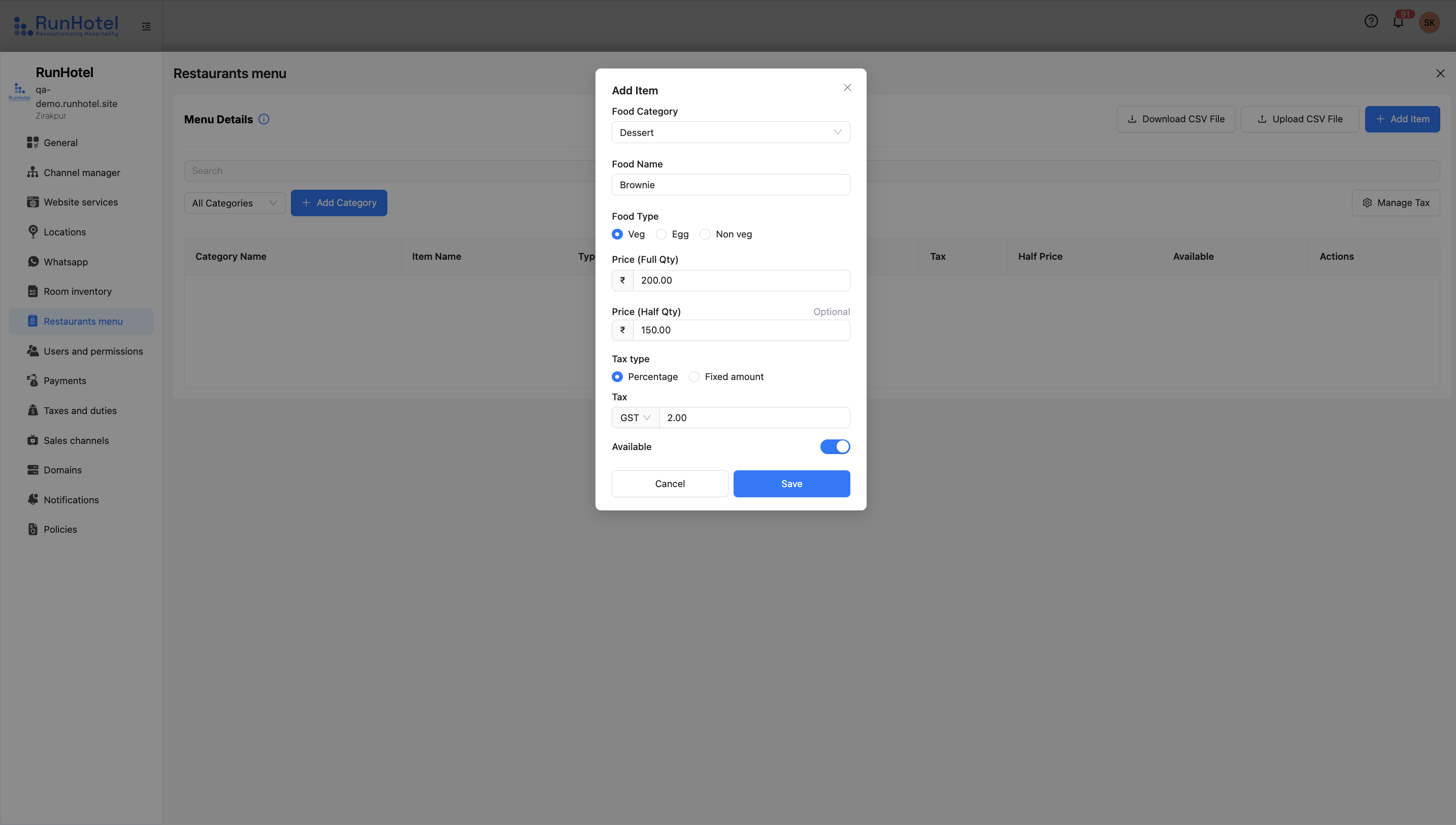
-Now, the user can see the added item displayed under the selected
menu category on the screen.
Option 2: CSV Upload
-
Navigate to the Menu Categories Management section, Click on "Download CSV File" to get the CSV template.
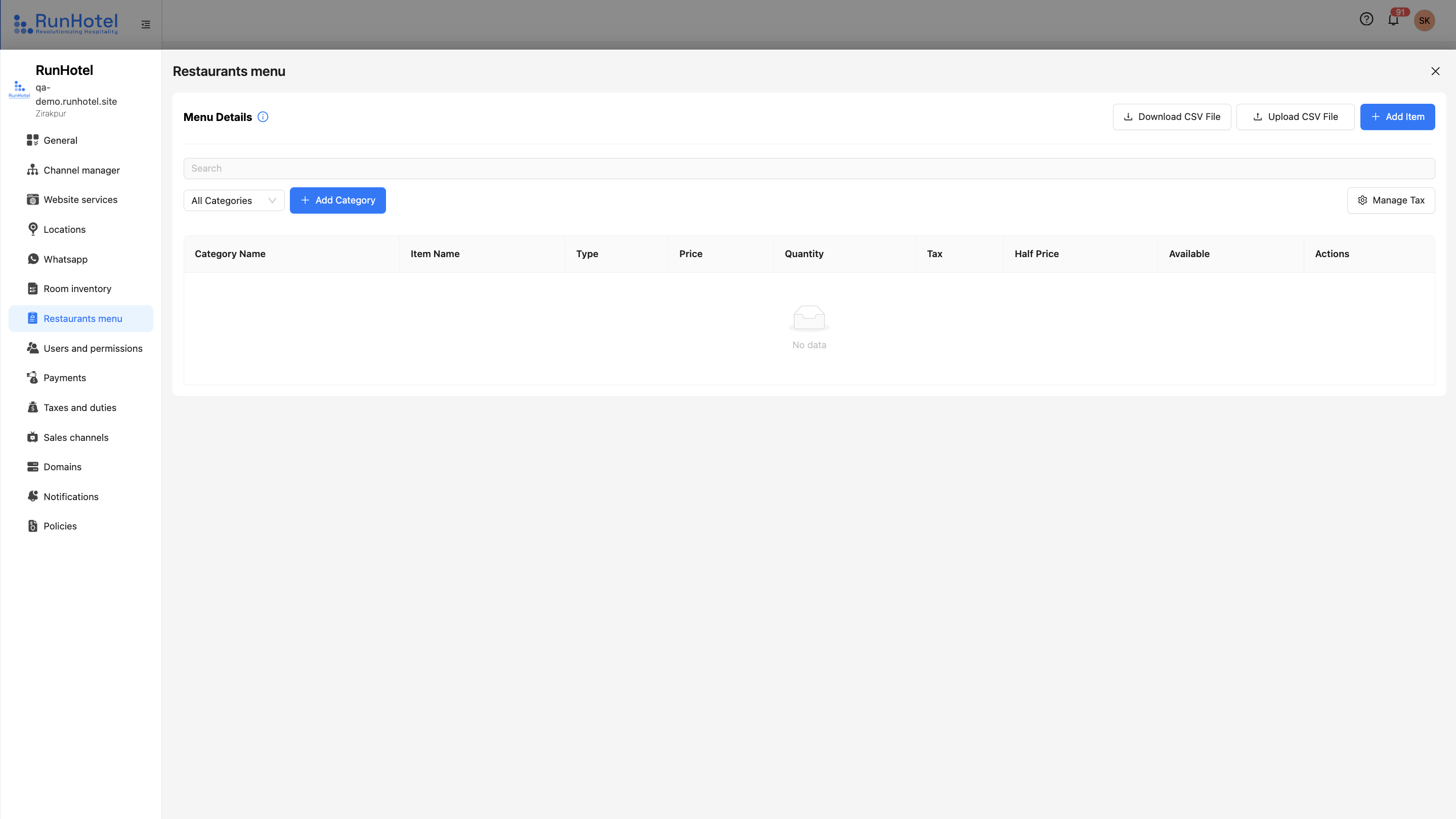
2. Fill in the required details in the CSV file e.g., Item Name: Brownie, type: Veg/Non-veg, Price : Rs 200, Price Name: full/half.
3. Return to the
Menu Categories Management section and click
"Upload CSV file". This modal appears
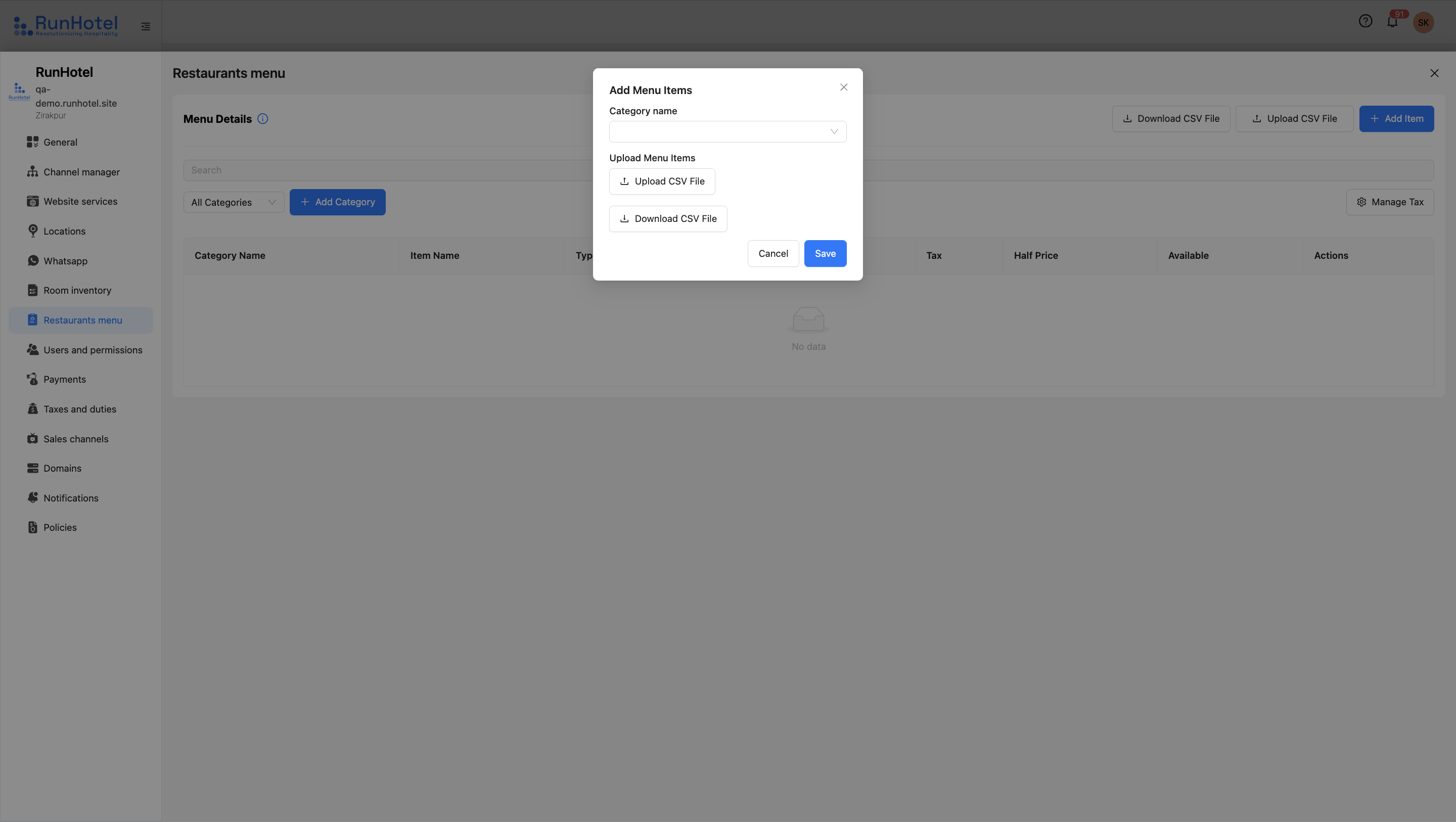
- Select the Category name, and upload the csv by clicking on the save button
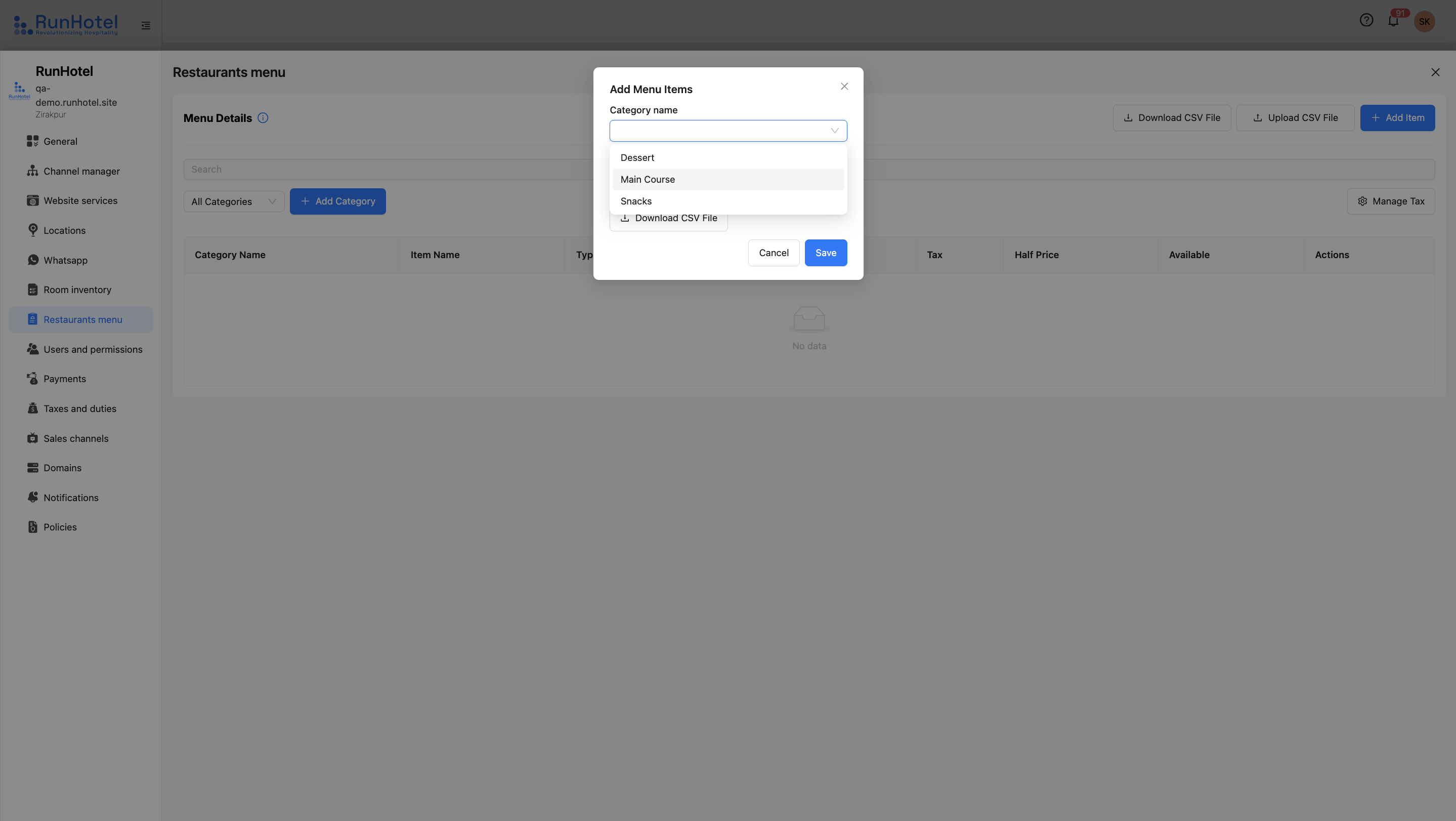
4. Once uploaded, the system will automatically create the categories listed in your file.
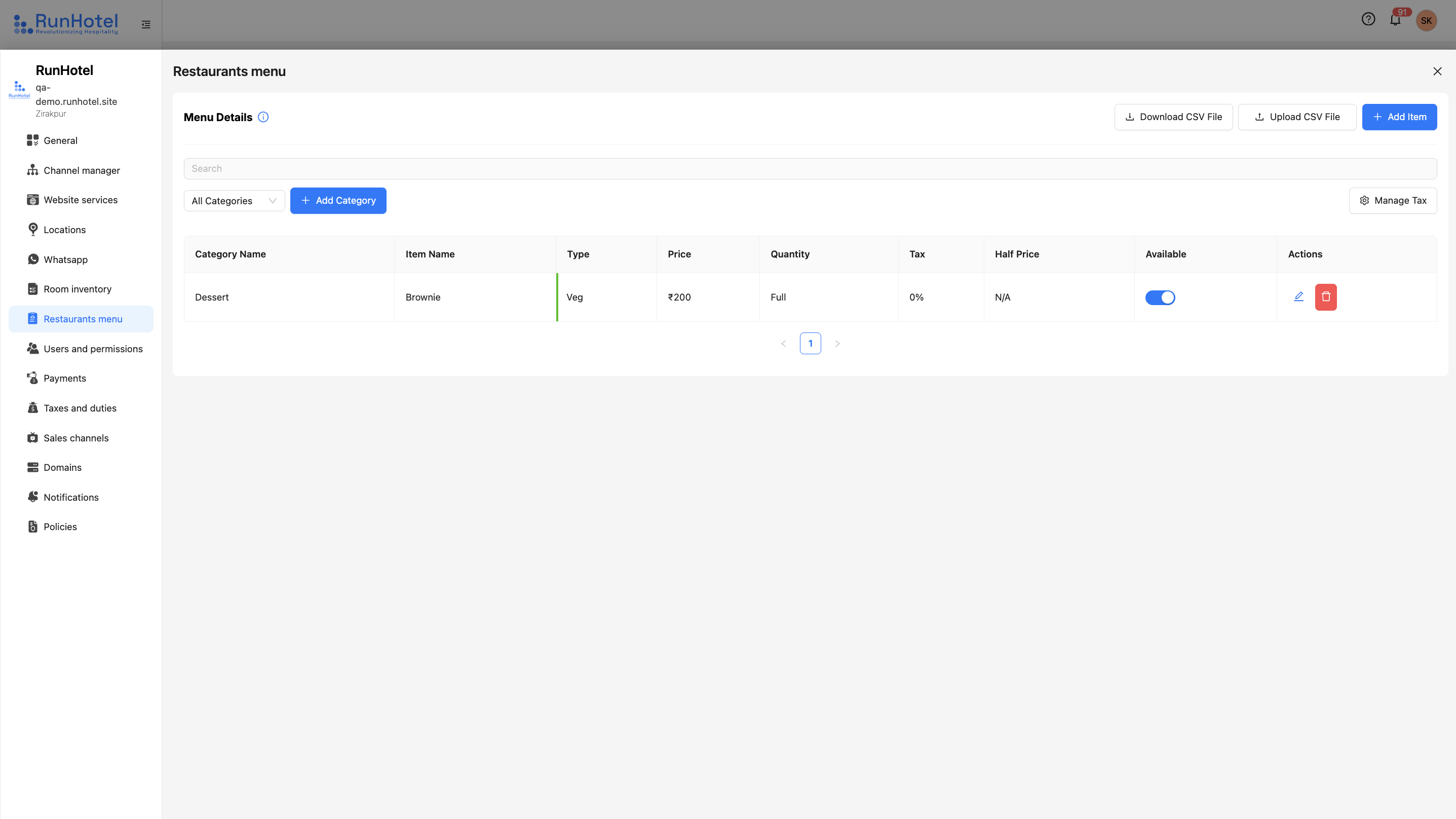
- For adding tax and price, click on the edit icon from the action column.
4. How do I control item availability?
In Products Management, each menu item has an “available” toggle. Turn it off to temporarily hide unavailable dishes or drinks
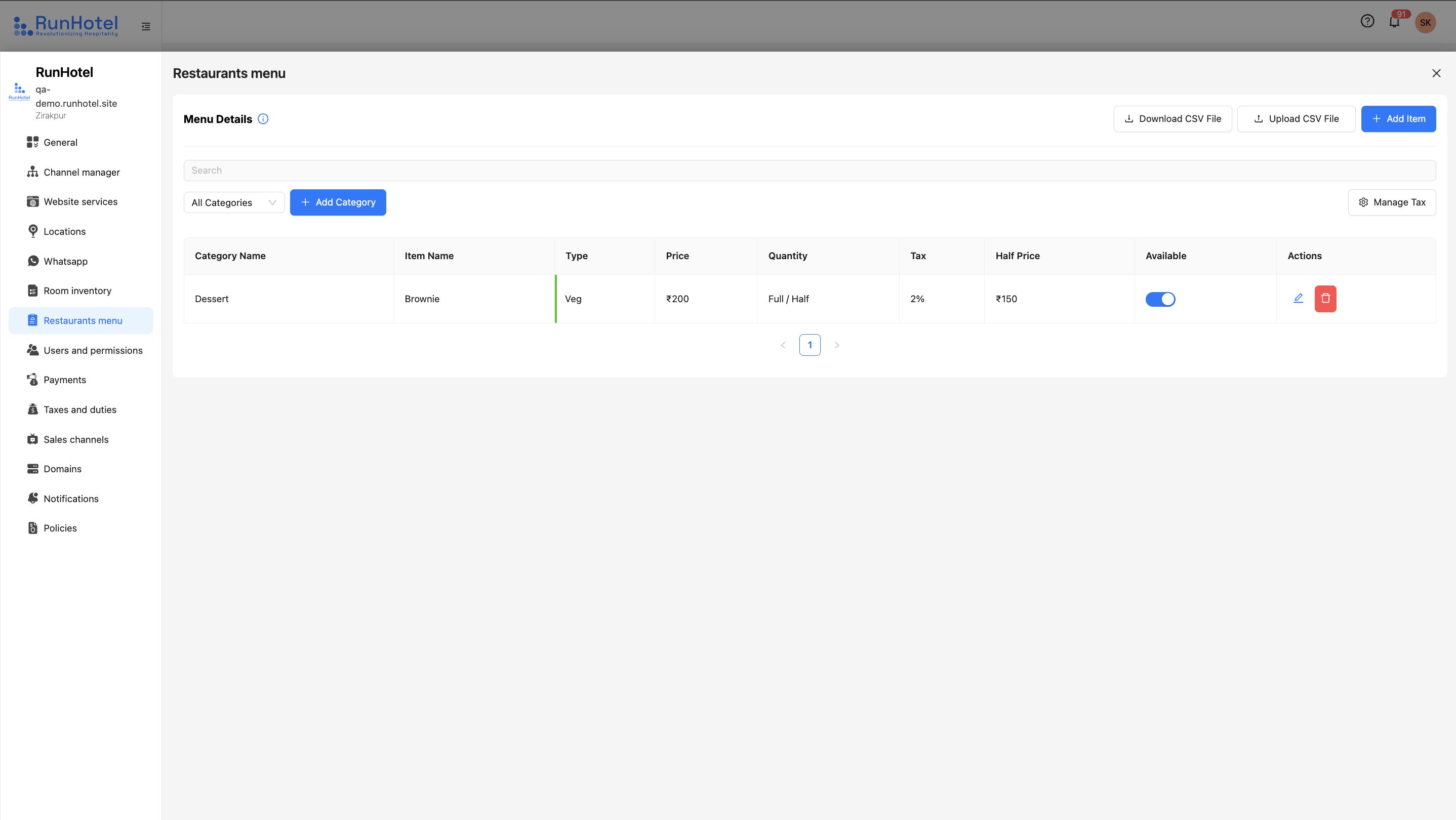
5. How can I edit or delete the added item?
Click the edit icon in the Action column to make changes. If you want to delete it, click the delete icon."